Troubleshooting
Common issues
The following table lists common issues and how to resolve them.
| Issue | Resolution |
|---|---|
| The asset shows its authored values again after Play mode. | This is intentional, and the save is untouched. For more information, refer to Edit mode and Play mode. |
| A field never saves. | Each serializer saves a different set of members. For more information, refer to Choose a serializer. |
| A save is ignored. | Read the result's Message, which says why. |
| A save reset itself after an update. | A manager setting changed. For more information, refer to Lock and migrate saves. |
| A manager, serializer or variable type is missing. | Install the package it needs. For more information, refer to Optional modules. |
| A remote save never lands. | Read the manager's Status: it says whether a change is still waiting, held by a conflict, or already on the server. A player who isn't signed in yet is a retry rather than a failure, so the save lands once sign-in does. |
| A load fails in an IL2CPP player on Odin. | Generate Odin's AOT support before you build. For more information, refer to Odin. |
| Prefs keeps nothing in a build. | Only the Editor creates the Prefs asset, so enter Play mode once before you build. For more information, refer to The Prefs asset. |
| A field holding an asset loads as empty. | Register the asset, and don't point the field at an asset loaded through Addressables. For more information, refer to Asset references. |
A list or map from GetList or GetMap stops saving its changes. | It went stale on a reload. Fetch it again each time you need it. For more information, refer to Store values under keys of your own. |
| An asset never saves on unload. | A static field holding it keeps it loaded for the session. For more information, refer to Scope and global assets. |
A scene object value set in Awake doesn't save. | The package reads a value set in Awake as authored. Set it in Start or later. For more information, refer to Save an object in your scene. |
| A destroyed scene object comes back after a load. | It started switched off and was never switched on. For more information, refer to Spawned and destroyed objects. |
| A Persistence Operation Listener stops raising its events. | A disabled component stops listening. Put it on a parent of any panel it switches off. For more information, refer to Save and load from the Inspector. |
When a save doesn't load
A load that doesn't land ends in one of two states, and they call for opposite responses:
| Result | What happened | What follows |
|---|---|---|
IsFailure |
Storage could not be read: a locked file, a server that is down, a runtime secret nobody has supplied yet. | IsReady stays false, so nothing overwrites what a retry might still recover. The manager keeps retrying on its own, and a plain Load() retries on demand. |
IsInvalid |
There is nothing to read: no save yet, or one that wouldn't decode. IsCorrupt tells those two apart. |
IsReady is true, because holding nothing is a valid state, and the next save writes over whatever was there. |
IsCancelled.IsTimedOut means storage never answered.A scene didn't come back
The console names the cause: a missing Scene State, a missing or duplicated id, a parent that isn't persistent, or a scene outside the build profile's list. Opening the scene and saving it fills the missing ids in.
One case reports nothing: the same scene loaded twice additively, because both copies share one key.
Debugging
Read the logs
Every manager shows its live state and an operation log in its own Inspector window, in the Editor and in development builds only. Each line carries the operation, its result and how long it took.
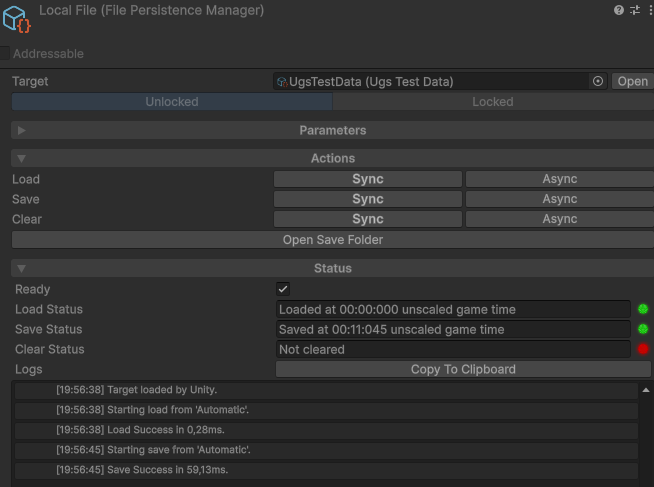
Warnings and errors also reach the Unity console, with a [Persistent Asset] prefix.
Inspect what is in the save
Save Data shows what storage holds next to what a save would write, decompressed and decrypted, for any Slot. Export and Import move that payload as a file, so a save from a device you can't reach opens here.
Debug in game and on a device
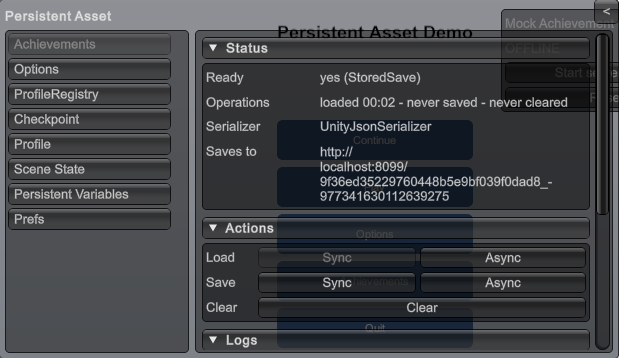
Persistence Debug Overlay puts the same information on screen, opened by a corner handle or F8. It removes itself from a release build unless Keep In Release Builds is on.
Across the whole project
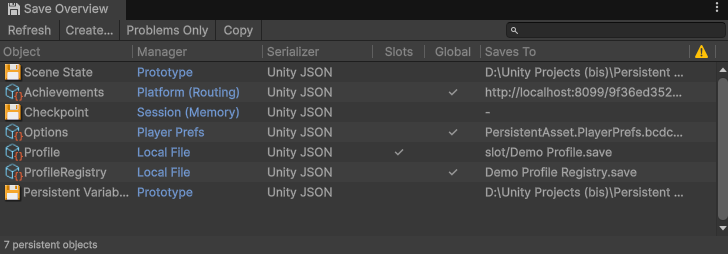
To list every persistent asset in the project, go to Tools > Persistent Asset > Save Overview.
Performance
A save costs two things: encoding your data, then writing it to storage. Every result carries how long the whole operation took, and the log and the overlay print the same figure on every line:
SaveResult result = await playerData.PersistenceManager.SaveAsync();
Debug.Log($"saved in {result.ElapsedMilliseconds:F1} ms");ElapsedMilliseconds is NaN outside the
Editor and development builds.These are what change that cost:
| What to change | What it does |
|---|---|
| Write Execution Mode set to Prefer Async | Moves compression, encryption and the write to storage off the main thread. |
| Regular Save Delay | How often the timed save runs. A longer delay is fewer saves, and more progress lost to a crash. |
| Compression | Spends CPU time to make the save smaller. Until a save grows large, it changes the size more than the serializer does. |
IDirtyTracked | Skips every save that would write nothing. |
| The Serializer | Encoding is where a large save spends its time, and the four serializers are far apart on it. For measured figures, refer to Size and speed. |
| Several assets instead of one | Each persistent asset encodes and writes on its own, so a change to one doesn't rewrite everything else. |
Simulate any save outcome
The Test manager stores nothing, and forces any operation to any outcome after a delay you set. It produces the cases real storage rarely produces:
Support
For anything the manual doesn't answer, email justetools@gmail.com. I answer within one business day.