Local Saving
A persistence manager saves and loads a persistent object. You pick one from the dropdown at the top of the object's inspector, and can switch at any time without touching code. These are the local managers; two more save to a server or the cloud (see Cloud & Remote).
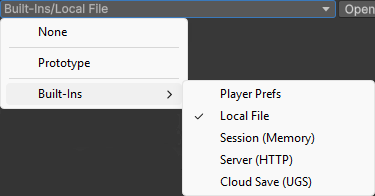
Prototype
The zero-configuration manager, assigned to new persistent objects by default (changeable in Settings). It writes one save file per object under the platform's persistent data path, on desktop, mobile and WebGL. Synchronous, with no dependencies.
- No settings: auto load, auto save and the regular save timer are all on and fixed.
- Editor-safe: in the editor its saves live in the project's UserSettings folder, so play mode never clobbers the saves of an installed build of your game.
- Its limits: compression, encryption, backups, a custom file name and async saving all need Local File.
Local File
Saves to files on the player's device, with every option exposed. It supports both synchronous and asynchronous operations.
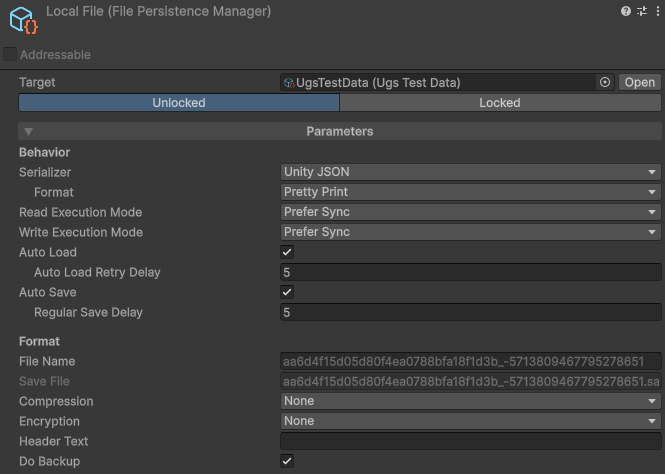
- File Name: override the file name and optionally place it in subfolders (no extension).
- Compression:
None,Fast, orOptimalgzip. - Encryption:
None,Append Hash(readable; a modified save still loads but is permanently marked as tampered, seeFilePersistenceManager.IsTampered), orEncrypt(fully encrypted, modifications rejected). See the security guide. - Lock Save To: tie protected data to the machine, the file location, and/or a runtime secret your code provides (until it does, the data stays unloaded).
- Header Text: a free line of text at the top of the file, written as a comment line starting with '#'. Players can edit the text or delete the whole line without breaking the save; leave it empty to write no header line at all.
- Do Backup: keep a second copy as extra insurance on top of the atomic write, so even an unreadable or undecodable primary still has a fallback.
- Auto Load / Auto Save / delays: full control over the automatic behavior and timing.
- Read / Write Execution Mode: prefer synchronous or asynchronous. Under a Prefer mode the safe-point saves (on quit, unload, focus loss) still run synchronously; set Async Only and they run asynchronously too, where a save can fail if it overruns its timeout.
Compression, encryption and the related options are covered in Securing saves.
Player Prefs
Stores saves through Unity's PlayerPrefs. Synchronous, simple, and a good fit
for small amounts of data (settings, a high score). It works on desktop, mobile and WebGL
(consoles gate saving behind their platform SDK, so like the file managers it is not
supported there). Every key it writes is prefixed so the package
can recognize and clear them.
Player Prefs is not designed for large blobs, and offers none of Local File's protection or backup options.
Session (Memory)
Keeps saves in memory only, for the current session. Nothing is ever written to disk, so all data is gone when the game closes or you leave play mode, and each session starts empty. Saves and loads still go through the normal API.
It suits state that should live within a play session but never across them: a mid-level checkpoint to respawn from, or a run's progress in a game where quitting forfeits the run.
Test
A fake in-memory manager for testing how a game behaves when persistence misbehaves, without touching a real save. Force any operation to any outcome (a failed load, a cancelled save, an exception), and inject delays to simulate a slow server.
Assigning it keeps a read-only import copy of the setup it replaces, restored in one click from its inspector.
None
None turns persistence off for that object: it behaves like a plain ScriptableObject, with no saving or loading.
Deleting local data
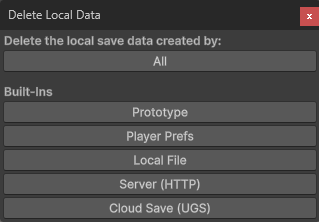
To wipe local saves while developing (to retest the first-launch experience, for example), open Tools > Persistent Asset > Actions > Delete Local Data. It lists every manager that exposes local data and lets you delete one, or all of them.
Clear() on the manager (or Persistence.ClearAll(),
see Core Concepts).