Core Concepts Must read
The parts
Three pieces do the work:
- The persistent object: your data, a
PersistentScriptableObject. - The persistence manager: where and how that data is stored (the inspector dropdown).
- The serializer: how the data is turned into text to store, and back.
Around those, three operations (load, save and clear) move data between the object and its storage.
The persistent object
Your data is a class inheriting PersistentScriptableObject. You read and write
its serialized fields at runtime exactly like a normal ScriptableObject, and those same
fields are what gets saved and loaded.
[CreateAssetMenu(menuName = "Player Data")]
public class PlayerData : PersistentScriptableObject
{
    public int gold;
    public int level = 1;
}
Whatever the fields hold outside play mode is the object's default values: what a new player starts with, and what the data falls back to when there is no save.
A persistent object is a single shared asset: everything referencing it reads and writes the same live data. Multiple save slots, save versioning and reacting to load and save are opt-in, through the optional interfaces.
The persistence manager
At the top of every persistent object's inspector is a Persistence Manager dropdown. The manager decides where and how the data is stored: a local file, Player Prefs, memory, a server. Pick one, or pick None to turn persistence off for that object. The manager is created automatically as a sub-asset of the persistent object; there is nothing to wire.

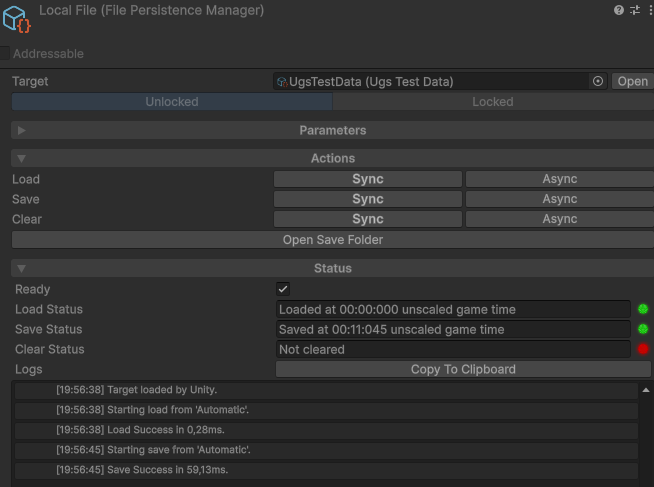
The manager is data on the asset, not in your scripts, so it can be switched at any time with no code change. Its inspector has three sections:
- Parameters: the manager's settings, the serializer, whether it loads and saves automatically, how often, timeouts, and manager-specific options.
- Actions: buttons to Load, Save or Clear by hand while you play.
- Status: the object's live state (ready or not, the last operation's result), and a running log of every load, save and clear as it happens.
See Local Saving for the available managers.
The serializer
Storage works in text. The manager runs the object through a serializer to turn it into a string on save, and back into the object on load. The serializer is a field on the manager, chosen in the same inspector.
The default is Unity JSON, which serializes your fields the way Unity already does, with the same rules as the inspector and prefabs. It produces plain, readable JSON when no compression or encryption is applied.
Two more ship with the package for data Unity's own serialization cannot describe, such as a dictionary or an interface field: Newtonsoft JSON and Odin, each appearing in the dropdown once its library is in the project. See Serializers.
A format of your own is added by writing a Serializer (see
Extending).
Operations: load, save, clear
Three operations move data between the object and its storage, and the manager runs them for you. A manager is in scope while its object is loaded and in use by the running game, and out of scope while nothing uses the object. By default:
- It loads when it enters scope, at launch or whenever Unity loads the object, and retries automatically if that load fails.
- It saves at safe points: when the object is unloaded, when the application loses focus or is paused, and on a regular timer.
Each of these can be tuned or turned off per manager, in its inspector
(AutoLoad, AutoSave and their delay settings).
Load
Reads the stored data back into the object. Automatic when the object enters scope, and callable for a "load game" or "continue" flow.
Save
Writes the object's current data to storage. Automatic at the safe points above, and callable at your own checkpoints.
IsReady reflects
whether saving is currently allowed (see when the data is ready).
Clear
Deletes the saved data, resets the object to its defaults, and pauses saving until the next
load, so the cleared state is never written back. To reset the object in memory without
deleting the save, use ResetToDefaults()
(see Resetting & Restoring).
Driving it yourself
Load, Save and Clear each come in five shapes, one per calling style (shown here with Save):
- Fire and forget:
Save(). Starts the operation and returns immediately. Wires directly onto a UI event, with no wrapper script. - Callback:
Save(result => ...). Runs your callback once the operation finishes, handing it the result. - Synchronous:
SaveSync(). Forces the operation to run inline and returns its final result. Not every manager can work inline (a server cannot); one that cannot reports it in the result rather than blocking the game. - Async:
await SaveAsync(). Await the result inside anasyncmethod. - Coroutine:
yield return SaveRoutine(). Yield it in a coroutine, then read itsResult.
PersistenceManager pm = playerData.PersistenceManager;

pm.Save();                                  // fire and forget
pm.Save(result => ShowSavedTick());         // callback when done
SaveResult syncResult = pm.SaveSync();              // forced synchronous, result inline
SaveResult asyncResult = await pm.SaveAsync();      // async
PersistenceOperation<SaveResult> op = pm.SaveRoutine();   // coroutine: create the handle,
yield return op;                                    //   yield return it,
SaveResult routineResult = op.Result;               //   then read its Result
Results
Every operation reports back a Result (LoadResult,
SaveResult or ClearResult), read through its flags:
IsSuccess: it worked.IsFailure: something went wrong (the storage was temporarily unavailable, or code threw). A retry might help.IsInvalid(load only): there was no usable save to read, missing or corrupt. This is normal on a first run: the object keeps its current values and saving is allowed.IsIgnored: the operation decided not to run and changed nothing.Messagesays why (nothing loaded yet, no slot selected, and so on).IsCancelled: it started but was abandoned (timed out, superseded, or the manager left scope).IsBusy: a specialIsIgnoredcase, where a synchronous call was declined because asynchronous work was still running. Retry once it is done, or use the async path.
A result covers one operation. Whether the object currently holds its real data is
IsReady, below.
When the data is ready
Once a manager has loaded, its object holds real data and is safe to read and modify.
IsReady exposes that state. How much it matters depends on the manager:
- No check needed: Player Prefs and Session (Memory) load instantly and cannot fail, so the data is ready before your game code sees the object (for Player Prefs, as long as its Auto Load stays on, the default).
- Ready in practice: Prototype and Local File also load synchronously as the object comes into scope, without the hard guarantee: a file read can fail in rare cases (a locked file, an unset runtime secret; see Local File).
- Always gate: a remote manager (a server, Cloud Save) loads asynchronously and can wait on authentication or connectivity, so readiness is a real state to handle. See Cloud & Remote.
Reading the object before it is ready is safe: it holds its default values, and saving stays blocked until the real data lands, so an early read cannot corrupt or overwrite a save. The risk is only that the game treats those defaults as the player's data.
One gate in the boot flow or loading screen covers this: await WhenReady (with
await or yield return), then proceed if IsReady is
true. The rest of the game needs no checks. Changing the active
slot starts a fresh load, and gates the same way.
await playerData.PersistenceManager.WhenReady;
if (playerData.PersistenceManager.IsReady)
    StartGame(playerData);
IsReady can be checked at any moment, and it doubles as the save permission:
saves are refused while it is false. It is true once the object
holds its data, and false before the first load completes, while a
slot change reloads, after a clear until the next load, and
after a load that failed, so a save never overwrites data a retry might still
recover.
Editor vs play mode
In the editor, when you stop playing, your persistent objects are restored to the default values you authored on the asset, not the runtime values from the play session.
In the editor, Unity normally writes runtime edits back into a ScriptableObject asset (this does not happen in a build). Persistent Asset undoes that, so your authored defaults stay as authored and version control stays free of play-session noise. The save itself is untouched and loads on the next launch, in the editor and in a build alike.
Acting on everything at once
Most code talks to one object's manager through
yourObject.PersistenceManager. To act on every active manager at once (a global
save on quit, a "new game" wipe), the static Persistence class mirrors the same
operations across all of them:
// Save every active manager at once
Persistence.SaveAll();

// Wait for every manager's load to settle
await Persistence.WhenAllReady;
Persistence also exposes global events (such as OnAfterAnySave and
ManagerAdded) for project-wide reactions like a "saving..." indicator.
Objects marked always-global (a settings singleton, a slot
registry) are reachable by type from anywhere, with no serialized reference, through
GlobalPersistedData.Find<GameSettings>().
The built-in managers
The manager is picked from the dropdown at the top of the object, and switching later is a dropdown change rather than a refactor. The local managers are covered in Local Saving, the two remote ones in Cloud & Remote.
| Manager | Where it saves | Best for |
|---|---|---|
| Prototype | One save file per object, managed for you. | Starting out and prototyping: zero setup, works on desktop, mobile and WebGL. |
| Local File | A file you configure: name, compression, encryption, backups. | A shipped game, with every file option available. |
| Player Prefs | Unity's PlayerPrefs. |
Small data: settings, a high score. |
| Session (Memory) | Memory only; everything is gone when the game closes. | State that lives within a play session but never across them. |
| Server (HTTP) | Your own server, through three simple HTTP routes. | Saves that follow the player across devices, on a backend you control. |
| Cloud Save (UGS) | Unity Gaming Services Cloud Save, per signed-in player. | Cross-device saves without running a backend of your own. |
| Test | Nowhere: every operation's outcome is forced by you. | Rehearsing failed or slow persistence, temporarily. |
| None | Nowhere: persistence is off. | An object that should behave like a plain ScriptableObject. |