Quick Usage Guide
Set up your first injected members with Selvage.
How Selvage works
Selvage is a dependency injection framework for Unity. Your scripts declare the objects they need, and Selvage finds those objects and assigns them, so your scripts no longer look for them themselves.
For example, the following script looks for the objects it uses:
public class Player : MonoBehaviour
{
    Rigidbody body;
    Camera view;
    AudioManager audioManager;

    void Awake()
    {
        body = GetComponent<Rigidbody>();
        view = Camera.main;
        audioManager = AudioManager.Instance;
    }
}
With Selvage, the same script declares them with the [Inject] attribute, and Selvage assigns them when
the script's object is created:
public class Player : MonoBehaviour
{
    [Inject] Rigidbody body;
    [Inject] Camera view;
    [Inject] AudioManager audioManager;
}
Compared with the first script:
- No more bugs from the order of
Awakecalls. In the first script,audioManagerstaysnullif Unity runs theAwakeofPlayerbefore the one ofAudioManager, which setsInstance. Selvage finds theAudioManagerin the scene, whichever runs first. - Missing objects show up in the Editor. The Inspector window lists what each script needs and flags what no
provider has, before you enter Play mode, instead of a
NullReferenceExceptionat runtime. - To give the script another object, such as a stand-in for a test, you change the provider list, not the script.
For more information, refer to Why inject dependencies.
Selvage works with three elements:
- Members: the fields and properties marked
[Inject]. The object a member receives is its dependency. - Providers: each provider gives dependencies from one source, such as the components in your scenes or the assets in a folder.
- The provider list: the ordered list of providers on the Selvage page of the Project Settings window. For each member, Selvage tries the providers from top to bottom, and the first one that has a dependency gives it.
In the previous diagram, the view member asks for a Camera. The Registry Provider has none, so the
Scene Provider, next in the list, gives the Camera in the scene. Because your scripts only declare what they need,
you can change where a dependency comes from in the provider list, without editing your scripts.
If you're familiar with dependency injection containers: Selvage has no container to build, no installer and no
bootstrap scene. The provider list replaces them for the whole project, and works as soon as you import Selvage.
A binding becomes [Provide] on the class, and a registered instance becomes a registry entry.
Dependencies arrive in fields and properties, the same way for MonoBehaviours, ScriptableObjects and plain C#
classes. For more information, refer to What sets Selvage
apart.
Validate your members
Selvage tells you whether each member will receive a dependency, without entering Play mode. To validate the members of a script, perform the following steps:
- In the Hierarchy window, select a GameObject that has the script.
- At the top of the Inspector window, select the Selvage section to expand it.
The section lists the injected members of each script on the GameObject, with the result of each:
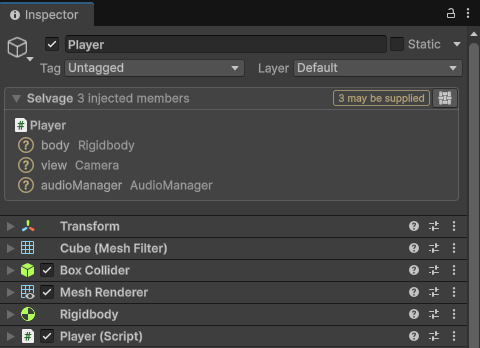
| Result | Meaning |
|---|---|
| Guaranteed | A provider always gives the member a dependency. |
| May Be Supplied | A provider can give one, but whether it does is only known when the member is injected, such as for a component in a scene. |
| Missing | No provider can give the member a dependency. |
In Play mode, the section displays the state of each member and the provider that gave its dependency:
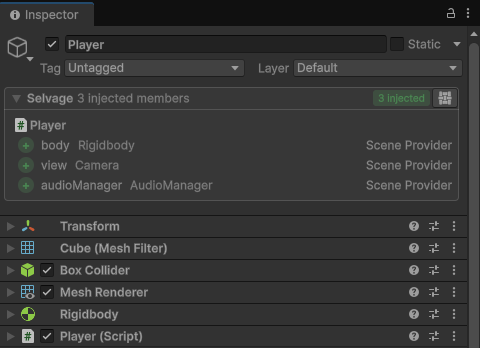
To read the reason for a result, or to validate every script of the project, select the Selvage button at the right of the section to open the Dependencies window, then select Validation. For more information, refer to Validate members.
Accept a missing dependency
A member is required by default, so a missing dependency never goes unnoticed: the Console window displays an
error that names the member. When your script works without the dependency, make the member
Optional:
[Inject(Optional = true)] AudioManager audioManager; // null, without an error, when no provider has oneOptional is one of the options of [Inject], which change how and when a
member is injected. For more information, refer to Options.
Provide dependencies
What you do to provide a dependency depends on where it comes from: a component in a scene, an instance of your own class, an asset, or an object your code creates.
Provide a component
A component in a loaded scene needs nothing more: declare a member of its type, and the Scene Provider gives it. It looks on the member's GameObject first, then on its parents and children, then in the rest of the scene and in other loaded scenes, and gives the closest component:
using Selvage;
using UnityEngine;

public class Player : MonoBehaviour
{
    [Inject] Rigidbody body;              // the Rigidbody on this GameObject
    [Inject] AudioManager audioManager;   // your own MonoBehaviour, elsewhere in the scene
}
Your own MonoBehaviours are given the same way, so AudioManager no longer needs its static
Instance.
Awake method, so they're still null inside Awake. Use them in
Start or OnEnable, and later.Provide an instance of your own class
To provide a C# class that isn't a component or an asset, add [Provide] to it. The Attribute Provider
creates the instance when a member needs it:
using Selvage.Providers;

[Provide]
public class Inventory { ... }
[Inject] Inventory inventory;Provide an asset
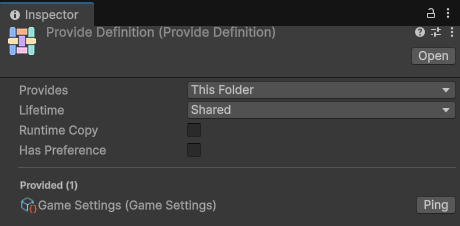
To provide an asset, such as a ScriptableObject, create a Provide Definition in its folder. A Provide Definition is an asset that makes the Asset Provider give the other assets of its folder to members of their types. To create one, select the folder in the Project window, then go to Assets > Create > Selvage > Provide Definition.
[Inject] GameSettings settings; // the GameSettings asset in that folderThe Provide Definition's Inspector window lists every asset it provides.
Provide an object your code creates
To give an object your code creates to members, do one of the following:
- Add it to the registry. Every member of its type then receives it, until you remove it:
RegistryProvider.Listed.Add(saveSystem);- Pass it in a local block, a
usingblock opened withInjector.Local. Only the objects you create inside the block receive it, which suits data that belongs to one object, such as the direction of a bullet:
using (Injector.Local(shot))
    Instantiate(bulletPrefab);   // the bullet's [Inject] BulletShot member receives shot
Choose a lifetime
Every object you provide has a lifetime, which decides whether members share it:
| Lifetime | Each member receives |
|---|---|
| Permanent | The same object as every other member, kept until play stops, or until scripts reload for one made in Edit mode. |
| Shared (default) | The same object as every other member. |
| Separate | Its own object. |
| Pooled | Its own object, borrowed from a pool. |
Where you set it depends on what you provide:
| Provided object | Lifetime |
|---|---|
| Scene component | A Provide Tuning component on its GameObject, which changes how the Scene Provider provides it. |
Class marked [Provide] | [Provide(Lifetime.Pooled)] |
| Asset | The Lifetime property of its Provide Definition. |
| Registry entry | RegistryProvider.Listed.Add(obj, Lifetime.Pooled) |
Instance, a Shared object that Selvage creates
doesn't last for the whole application. Selvage ends it once no member holds it, and creates a fresh one when a
member needs it again. For one object that lasts until play stops, use Permanent. For more information, refer to Lifetimes.Inject every member of a class
To avoid writing [Inject] on each field, add it to the class instead. Every field and property of the
class whose type is a reference type, such as a class or an interface, is then injected. A class, an assembly or the project marked this way is
a scope:
[Inject]
public class Player : MonoBehaviour
{
    Rigidbody body;          // injected
    Camera view;             // injected
    string title = "Hero";   // keeps its value
}
Selvage only injects members that are still null, so a field keeps the value you give it, whether
you set it in its initializer, in the Inspector window or in Awake.
To widen the scope, do one of the following:
- To inject every class of an assembly, add
[assembly: Inject]to any file of the assembly. - To inject every class of the project, enable Inject by Default on the Selvage
page of the Project Settings window. Members are then
Optionalby default, so a field that no provider has a dependency for keeps its value, without an error.
To leave a member, a class or an assembly out of a scope, add [DontInject] to it. For more
information, refer to Inject with scopes.
Next steps
- Tutorial: Convert a script to Selvage: replace
GetComponent,Camera.mainand a staticInstancewith injected members, step by step. - Options: wait for a dependency that loads, follow one that's replaced, and more.
- Choose between several candidates: decide which object a member receives when several fit.
- Manage the provider list: reorder the providers, or add your own.
- Explore the demo: play a small game built with Selvage.
- Migrate from Zenject or VContainer: move a project that uses either.
- User Manual: every feature of Selvage, its windows and its settings.
- Public API: every public type and member.
For questions and bug reports, use the contact form or email justetools@gmail.com.
com.unity.nuget.mono-cecil), which importing Selvage installs. For more information, refer to
Install Selvage.