Documentation
InfVal
Description
InfVal is the core struct of the asset. It stores two private fields:
a BigInteger for the digits and an int for the exponent.
It is similar to a Java BigDecimal, with an exponent instead of a scale
(exponent = -scale). This lets it represent any integer or floating-point
number with arbitrary precision.
Usage
InfVal is in the InfiniteValue namespace.
using InfiniteValue;
It is a value type (struct) and behaves like int, float, or
Vector3. Assigning it copies the value; operations never modify the original.
InfVal a = 42;
InfVal b = a;
b = b + b;  // a is unchanged, b is now 84
It is publicly immutable. You can safely pass it with the in keyword
to avoid a copy.
void Method(in InfVal arg) { ... }Any primitive value type implicitly converts to InfVal. An InfVal can be explicitly cast back to any primitive.
InfVal iv = 1.23f;
float f = (float)iv;
For the full list of constructors, operators, methods, and properties, see the Public API.
Inspector
InfVal is serializable. Declare it as a public field
or with [SerializeField] and it appears in the inspector.

Click the arrow or double-click the label to expand the drawer.
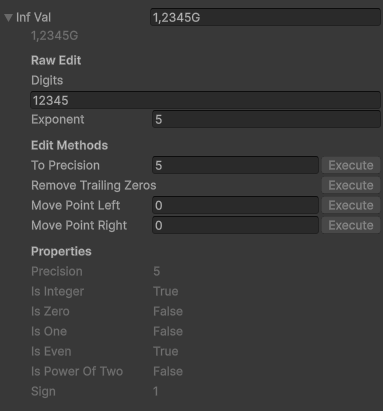
- Value field: Shows the formatted value. Edit it and press Enter to set a new value; the text is parsed using the default formatter.
- Raw Edit: Edit the
digitsandexponentdirectly. - Edit Methods: Call
RemoveTrailingZeros,MovePointLeft, orMovePointRightwith one click. - Properties: Read-only display of all public properties. "Undefined" means the property threw an exception (e.g.
isEvenon a floating-point value).
Which sections appear and whether they show titles is configurable in the Configuration asset (see Configuration).
String Representation
Call ToString() with no arguments to format using the project-wide
default formatter from the Configuration asset. Pass a formatter
explicitly to override it for a single call.
InfVal iv = 1234567f;

string s1 = iv.ToString();                             // uses Configuration default
string s2 = iv.ToString(myFormatterAsset.formatter);   // explicit formatter
For a raw, unformatted representation useful for debugging, use
ToDebugString(). It returns a string in the form (digits, exponent).
InfVal iv = new InfVal(1234.5f, 6);
Debug.Log(iv.ToDebugString());
// output: (123450, -2)
Parsing
Two static methods convert a string to an InfVal. Both accept an
optional IInfValFormatter; if omitted, they use the
Configuration default.
InfVal.Parse(string): Returns the parsed value; throws aFormatExceptionif the string is invalid.InfVal.TryParse(string, out InfVal): Returnstrueon success,falseon failure; never throws.
InfVal a = InfVal.Parse("1.5k", myFormatter.formatter);

if (InfVal.TryParse("42", out InfVal b))
Debug.Log(b); // 42"123.00" gives digits=12300, exponent=−2, which is more precise
than "123".
Troubleshooting
Division looks like zero
InfVal precision determines how many decimal places a division result can hold. If the precision is too low, the result rounds to zero.
// "1" has 1 digit of precision: no room for the decimal result
Debug.Log(new InfVal("1") / new InfVal(3));        // 0

// Specify precision explicitly to get the expected result
Debug.Log(new InfVal("1", 9) / new InfVal(3));     // 0.333333333
Arithmetic returns an InfVal with the precision of the
higher-precision operand. All types default to their maximum digit count
(e.g. 9 for float, 17 for double, 29 for decimal,
10 for int, 19 for long, etc.).
Methods seem to have no effect
InfVal is immutable. Methods like ToPrecision return a
new value; they do not modify the original. Always assign the result.
iv.ToPrecision(3);       // does nothing
iv = iv.ToPrecision(3);  // correct
Limits
InfVal is not truly infinite. The practical bounds are approximately ±104 294 967 295, with an epsilon of 10−2 147 483 648 and a maximum precision of 2,147,483,647 digits (reaching it would require several GB of RAM).
Performance
For stable performance, keep precision constant. Set it when creating the value.
InfVal iv = new InfVal(0, 256);         // 256-digit precision
iv = new InfVal(0).ToPrecision(256); // equivalent- Cache the
ToString()result and refresh it only when the value changes. - Pass InfVal with the
inkeyword to avoid unnecessary copies. - Call
RemoveTrailingZeros()to reduce digit count without changing the value.
Formatters
All formatting and parsing in Infinite Value goes through the
IInfValFormatter interface. A formatter converts an
InfVal to a string and back. The project-wide default is set in the
Configuration asset and can be overridden per call or per component.
FormatterAsset
A FormatterAsset is a ScriptableObject that wraps any
IInfValFormatter instance so it can be assigned in the inspector and
shared across components.
Create one via Assets > Create > Infinite Value > Formatter, then select a formatter type from the dropdown and configure its fields.
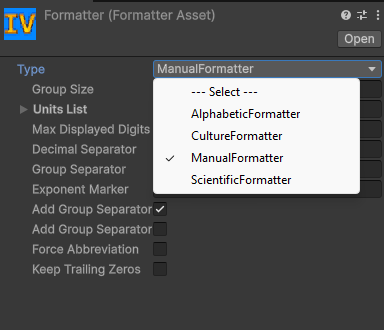
Assign a FormatterAsset to the Default Formatter field
in the Configuration asset, or directly to an
InfValInputField component to override the default for that field.
Built-in Formatters
ManualFormatter
Fully explicit. Configure every detail of how the value is displayed.
groupSize: Digits per unit level and group separator step. Default: 3 (k/M/G style). Use 4 for East Asian style (万/億/兆).unitsList: Suffix list applied at each power step (default: k, M, G, T, P, E, Z, Y).maxDisplayedDigits: Maximum digits in the output, leading zeros of values below 1 included (0 means unlimited). The last displayed digit is rounded half away from zero.decimalSeparator/groupSeparator: Decimal point and thousands separator characters.exponentMarker: Marker for scientific notation (e.g."e").addGroupSeparatorsBeforeDecimalPoint/addGroupSeparatorsAfterDecimalPoint: Toggle thousands separators on each side of the decimal point.forceAbbreviation: Always use a unit suffix or scientific notation, even for small values.limitDisplayedDecimals: Turn on themaxDisplayedDecimalslimit. Off by default, leaving the number of decimals unbounded.maxDisplayedDecimals: Maximum decimals to display, in the decimal part of the number or of the abbreviated mantissa. The number is rounded to this many decimals before a layout is picked, so a value smaller than the limit shows as zero rather than switching to scientific notation. Values below 1 stay in fixed point as long as they fit inmaxDisplayedDigits.0rounds to whole numbers.keepTrailingZeros: Keep the trailing zeros of the decimal part, padding it up tomaxDisplayedDecimalswhen that limit is set.
Setting maxDisplayedDigits to 3, maxDisplayedDecimals to 2 and turning on
limitDisplayedDecimals and keepTrailingZeros gives a constant width in the
small range and unit suffixes in the large one: 0.00,
0.02, 0.10, 1.50, 12.3,
999, 10.1k, 1.23M.
ScientificFormatter
Always formats as scientific notation (e.g. 1.23e+6). No unit suffixes or group separators.
decimalSeparator,exponentMarker,maxDisplayedDigits,keepTrailingZeros
AlphabeticFormatter
Idle-game style with letter suffixes: 1.23a, 4.56b, ...,
1.00aa, 1.00ab, ... Suffixes are generated from a
configurable alphabet and cached automatically.
alphabet: Source string for generating suffixes (default: a–z).maxDisplayedDigits,limitDisplayedDecimals,maxDisplayedDecimals,decimalSeparator,groupSeparator,keepTrailingZeros
CultureFormatter
Derives separators from a C# CultureInfo. For Japanese, Korean, and
Chinese locales it automatically uses native unit suffixes
(万/億/兆/京, 만/억/조/경, 万/亿/兆) with 4-digit stepping. All other locales use
Western units (k/M/G/...) with 3-digit stepping.
culture: The culture to use (serializable via theCultureclass).maxDisplayedDigits,limitDisplayedDecimals,maxDisplayedDecimals,addGroupSeparatorsBeforeDecimalPoint,addGroupSeparatorsAfterDecimalPoint,keepTrailingZeros
Formatting into Parts
Format can hand the pieces of a value back separately instead of as one string, for
laying the number and its unit out on their own.
List<string> parts = new List<string>();

value.Format(parts, 2);
numberLabel.text = parts[0];             // "10.1"
unitLabel.text   = parts[1] + "Wh";      // "kWh"
The first part is always the number; how the rest is grouped is up to the formatter. The built-in
formatters give ["10.1", "k"] for a unit, ["1.23", "e", "-6"] for scientific
notation and ["999"] for a plain value. Concatenating the parts always gives exactly what
Format returns.
partCount of 0 or less asks for the formatter's natural split. A positive value asks for
exactly that many parts, up to InfValFormatHelper.maxPartCount (16), merging the tail or padding with empty strings, so a layout with a fixed number
of fields never has to check Count. The list is cleared and refilled, so the same one can be
reused across calls instead of allocating a new one.
Custom Formatters
Implement IInfValFormatter to build a fully custom formatter. Mark the
class [Serializable] so it can be wrapped in a
FormatterAsset and edited in the inspector.
using System;
using InfiniteValue;

[Serializable]
public class MyFormatter : IInfValFormatter
{
    public string Format(in InfVal value)                    { ... }
    public bool TryParse(string text, out InfVal result)     { ... }
    public bool IsValidPartialInput(string text)             { ... }
}
Use the static InfValFormatHelper class for the heavy lifting. It
exposes Format, TryParse, Parse,
IsValidPartialInput, GetDecimalSeparator,
GetGroupSeparator, AreUnitsValid, and
defaultExponentMarkers.
Configuration
The Configuration asset stores the project-wide defaults used by InfVal and the inspector drawer. It is created automatically on the first domain reload if it does not exist.
Open it via Tools > Infinite Value > Configuration, or find the asset at Assets/Resources/Infinite Value Configuration.
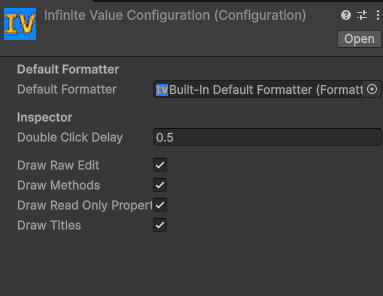
Default Formatter
Assign a FormatterAsset here. This formatter is used by
ToString(), Parse(), and TryParse() whenever
no formatter is supplied explicitly. A "Built-In Default Formatter" asset
(CultureFormatter) is assigned automatically when the Configuration is first created.
Inspector Settings
- Double Click Delay: Maximum time in seconds between two clicks to count as a double-click (used to fold/unfold the drawer).
- Draw Raw Edit: Show the Digits and Exponent edit fields.
- Draw Methods: Show the Edit Methods section.
- Draw Read-Only Properties: Show the Properties section.
- Draw Titles: Add a title above each section in the drawer.
Input Field
InfValInputField is a MonoBehaviour that converts a standard Unity
InputField or TMP_InputField into an
InfVal input field.
Create an input field GameObject (right-click > UI > InputField or TextMeshPro - InputField), then attach the component (Add Component > UI > InfVal Input Field Converter).
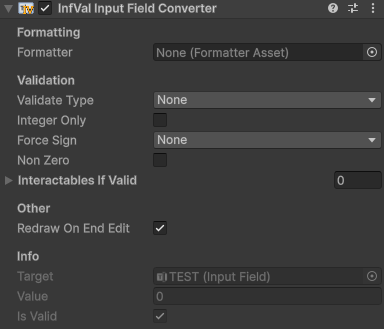
- Formatter: Optional override. If empty, the Configuration default is used.
- Validate Type: How invalid input is handled:
None,ChangeColor, orDisallowInvalid(blocks characters that would make the input invalid). - Valid / Invalid Color: Colors applied to the text when Validate Type is ChangeColor.
- Integer Only: Treat non-integer values as invalid.
- Force Sign: Restrict to positive or negative values only.
- Non Zero: Treat zero as invalid.
- Interactables If Valid: UI Selectables that are only enabled while the input is valid.
- Redraw On End Edit: Replace the typed text with a clean formatted representation when the user finishes typing.
Scripting members:
value: Get or set the current InfVal.isValid: Whether the current value passes all validation constraints.activeFormatter: The formatter in use (assigned or Configuration default).target: The underlyingInputFieldorTMP_InputField.
Other Classes
MathInfVal
A static class analogous to Mathf, dedicated to InfVal.
Contains more than 30 methods: Abs, Pow, Sqrt,
Log, Min, Max, Clamp,
Approximately, RandomRange, and more. See the
Public API for the full list.
InterpolateInfVal
A static class for interpolating InfVal values. Includes methods
equivalent to Unity's Lerp and SmoothStep, plus additional
interpolation modes. See the Public API.
Culture
A serializable wrapper around CultureInfo, used by
CultureFormatter. Use the .info property wherever a
raw CultureInfo is expected.
Culture c = new Culture(Culture.Type.CurrentCulture);
CultureInfo ci = c.info;
Tests
The asset ships with two complementary testing tools.
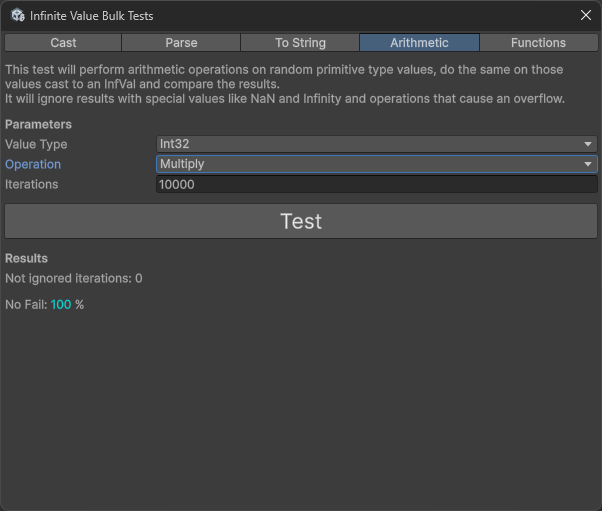
Bulk Tests
Open the window via Tools > Infinite Value > Bulk Tests. It runs randomized tests across casting, parsing, formatting, arithmetic, and MathInfVal methods, comparing InfVal results against their primitive-type equivalents to catch correctness regressions.
Unit Tests
A NUnit test suite is included and runs via Unity's built-in Test Runner (Window > General > Test Runner, Edit Mode tab). The suite covers:
- InfValPropertiesTests:
precision,isZero,isOne,isInteger,isEven,isPowerOfTwo,sign,digits,exponent. - InfValComparisonTests: All six comparison operators and
CompareTo. - InfValArithmeticTests: Every arithmetic, bitwise, and shift operator.
- InfValMethodsTests:
ToPrecision,ToExponent,RemoveTrailingZeros,MovePointLeft/Right,Deconstruct. - InfValCastTests: Round-trip casts for all integer types,
BigInteger,float, anddouble. - InfValParseTests:
InfValFormatHelper.TryParsewith known strings. - FormatterTests: Formatting output for all built-in formatters.
- MathInfValTests: Every
MathInfValmethod.
Run both tools after modifying any scripts to catch regressions.
Demo
The package includes a full clicker-game demo that showcases InfVal in action. It features a save system, a scriptable-object database, a simple audio system, and several reusable UI scripts.
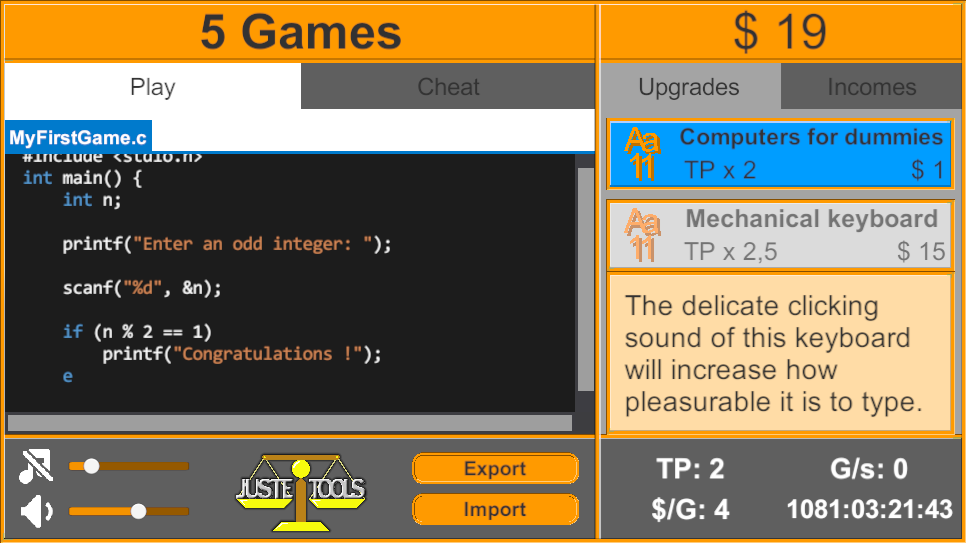
Use the demo as a reference or as a starting point for your own idle/clicker game. If you do not need it, delete the Demo folder to remove unused assets from your project.
Author & Contact
Created by Juste Tools.
- Contact: justetools@gmail.com
- Other assets: assetstore.unity.com/publishers/52427
If you enjoy Infinite Value, please consider leaving a review on the Asset Store. Your feedback helps improve the tool!