Change the settings
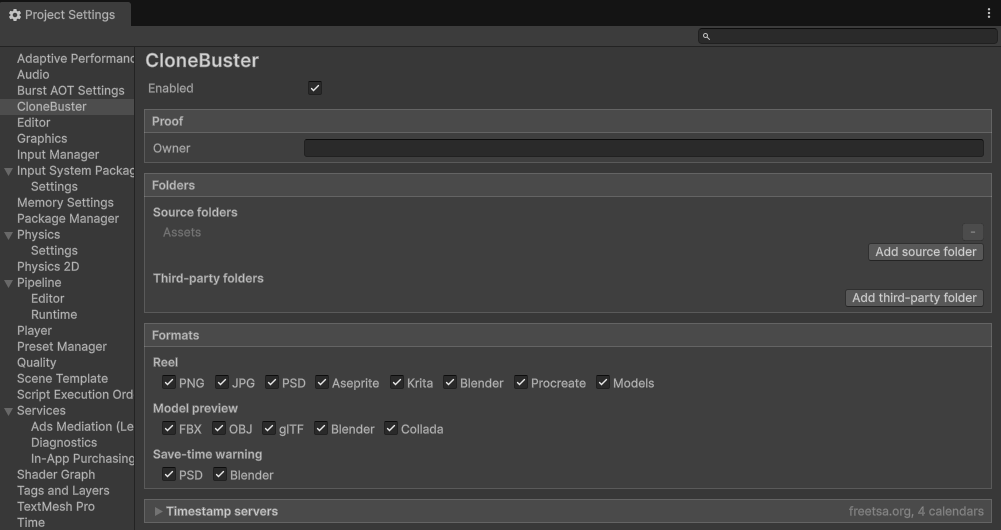
Every setting is optional: CloneBuster records and timestamps your project with none of them changed. The settings
are at Edit > Project Settings > CloneBuster, and are saved in
ProjectSettings/CloneBusterSettings.asset, so your team shares them through version control.
What the vault records
CloneBuster records every file under Assets and under each source folder you add, except the
following:
.metafiles.- Files and folders whose name starts with a period, and folders whose name ends with
~, which Unity ignores too. - Temporary and system files: names that start with
~,.tmpand.blend1files,Thumbs.dbanddesktop.ini. - Files from the Asset Store, and files under a folder you marked as third-party.
- The
CloneBusterfolder itself.
Recording runs in the Editor only. It doesn't run in batch mode, so a build server or a command-line test run doesn't add versions.
Record folders outside Assets
Your source art often lives outside your Unity project: layered PSD files, Blender and Krita files, key
art, trailer frames, store-page material. To record a folder outside Assets, perform the following
steps:
- Under Folders, select Add source folder.
- Select the folder, then select Select Folder.
The folder appears in the Exporter's tree, and CloneBuster records its files from then on. To stop recording it, select - beside it. Its versions stay in the vault.
CloneBuster refuses the following folders, and the settings page says why:
- A folder inside
Assets, or one that holds it, such as the project folder. - A folder Unity or CloneBuster writes to:
CloneBuster Vault,CloneBuster Exports,Library,Temp,LogsandUserSettings.
Mark a third-party folder
CloneBuster recognizes Asset Store files by itself. For assets from anywhere else, such as stock art, sound packs
or licensed audio, mark their folder as third-party: under Folders, select Add third-party
folder, then select the folder, inside Assets or a source folder.
Files under the folder are no longer recorded, show as Third-party in the tree, and can't be ticked for an export.
Set the owner
Owner is the name on every Proof.pdf, notice text and reel end card. When empty, it's the
Company Name of the Player settings. A new Unity project's Company Name is DefaultCompany: the settings and the
Exporter warn you while the proof would show it, and the reel leaves it out.
Turn off previews for a format
Under Formats, each format can be turned off on its own. Its files are still recorded and timestamped.
| Setting | Turned off |
|---|---|
| Reel | CloneBuster stops making previews of that format, which saves space in CloneBuster Vault, and its files leave the Reel tab. New versions show no image in Proof.pdf. For Models, previews are still made and only the Reel tab drops them. |
| Model preview | CloneBuster stops rendering new versions of that model format in Assets, which saves Editor time after each import. Those versions have no preview. |
| Save-time warning | No banner when a PSD or Blender file is saved without its image. |
Change the timestamp servers
Expand Timestamp servers to change where batches are sent: by default FreeTSA as the timestamp authority, and the four calendars the OpenTimestamps client uses. You can use any RFC 3161 timestamp authority.
A batch already timestamped keeps the proofs it has. A batch gets its Bitcoin proof as long as one calendar answers, and a proof pending on a calendar you remove stays pending. Reset to defaults restores the authority and the calendars.
Turn CloneBuster off
To turn CloneBuster off for a project, disable Enabled. Nothing is recorded or sent, and the Inspector line is hidden; the Exporter still exports what the vault holds. When you enable it again, CloneBuster scans the project and records what changed while it was off, with the date of that scan.